tattoos
Showing posts with label System. Show all posts

Tuesday, April 20, 2010

Mendisable Menu Folder Option pada Windows Explorer

Berikut sebuah tutorial untuk mendisable Menu Folder Option pada Windows Explorer. cukup mudah, ikuti saja langkah-langkah berikut :

image Jalankan RUN, lalu ketikan gpedit.msc

imageimage Selanjutnya masuk pada :

User Configuration > Administrative Templates > Windows Components > Windows Explorer

image Cari file yang bernama : Remove the Folder Options menu item the Tools menu

Double click saja,,,

image

Pilih enable, lalu ok dan tutup group policy. Sekarang coba masuk pada windows explorer, maka menu folder option tidak akan muncul.

imageKenapa Folder Option terkadang harus di hilangkan?? Ya mungkin dengan alasan sebuah keamanan, untuk menjaga privasi juga. Hehehe..

Tetapi kebanyakan masalah yang ada adalah folder option secara otomatis hilang, padahal kita tidak mengutak-atiknya, dan ini kemungkinan kerjaan dari virus. Untuk memunculkannya lagi, sama seperti cara di atas, kemudian pilih Not Configured.

Sunday, April 11, 2010

Windows 7 32 Bit Ultimate Red Edition 2010

Nih ada salah satu versi dari Windows 7, file ini saya dapet pas lagi browsing di sebuah forum underground, tepatnya di http://www.palembanghackerlink.org/. Untuk kelemahan dan kelebihan nya saya tidak menguasai, karena saya sendiri bukan pengguna Windows 7 Red Edition ini, tapi saya kemarin setelah mendapatkan file ini, saya langsung melakukan peng-install-an, saya install di VMware, hehhe.. biar g perlu repot partisi harddisk.. hoho.. pengen gampangnya aja…

Sedikit informasi saja, Windows 7 RED Edition ini merupakan Windows 7 yang di khususnya untuk daerah ARAB, karena di bagian Welcome Screen nya tertuliskan sebagai berikut :

image

Ada bahasa arabnya tuh.. gak ngerti… Dan berikut beberapa screenshoot dari bagian2 yang ada :

image

Welcome Screenimage

Desktop

image Explorer

Dan untuk tampilan2 lainnya tidak jauh beda dengan windows 7 Ultimate kok, ya perbedaan2 nya tidak begitu signifikan. Paling2 cuma dari segi icon, themes, dan untuk yang lainnya silahkan di coba yak, kalo gak mau repot mencoba, pake VMware aja dulu, kalo berminat baru di Install di Laptop atau PC sobat…

Langsung saja yak, yg sudah tidak sabar, nih link untuk DOWNLOAD nya :

http://www.slingfile.com/file/vWV0dOplBN
http://www.slingfile.com/file/0rehhp3jds
http://www.slingfile.com/file/LYro2jQ8hd
http://www.slingfile.com/file/fY1I1zZm0I
http://www.slingfile.com/file/nCs7ScYHRS
http://www.slingfile.com/file/6b5SbhnwIK
http://www.slingfile.com/file/hMH1Ilx8BV
http://www.slingfile.com/file/3Mt7vdxMiF
http://www.slingfile.com/file/qPrR961Pph
http://www.slingfile.com/file/tDEsh7pH18
http://www.slingfile.com/file/XKwjDZmE0u
http://www.slingfile.com/file/9okyxEQMav
http://www.slingfile.com/file/VoJzBLAE3e
http://www.slingfile.com/file/HCoYyV45QT
http://www.slingfile.com/file/qTzfxifMLS
http://www.slingfile.com/file/qXfRC8GEEh

Salam blogger, otong.info

Tuesday, January 19, 2010

What Is SQL?

SQL merupakan singkatan dari Structured Query Languange. SQL (sequel) adalah salah satu bahasa yang dikembangkan oleh IBM di San Jose Research Laboratory, dan merupakan bahasa generasi level ke-4. Berbeda dengan bahasa pemrograman level ke-3, SQL adalah bahasa yang bersifat request oriented dan bersifat non-prosedural. Karena hal itu, sehingga SQL mudah dipahami karena sintaks atau perintah yang digunakan hampir mendekati bahasa yang digunakan oleh manusia untuk berkomunikasi. Dalam penulisan sintaks, SQL bersifat non case sensitif, sehingga memudahkan kita dalam mengingat semua sintaks yang ada.

image

SQL banyak digunakan oleh vendor-vendor pembuat DBMS (Database Management System) yang ada di dunia, seperti Microsoft SQL Server, ORACLE, PostGreSQL, MySQL.

SQL terbagi dalam 5 bagian utama, yaitu :

  1. Retrieving Data : perintah untuk menampilkan data dari database. example : SELECT.
  2. DDL (Data Definition Language) : bahasa yang mempunyai kemampuan untuk mendefinisikan data yang berhubungan dengan pembuatan dan penghapusan objek. example : CREATE, DROP, ALTER.
  3. DML (Data Manipulation Language) : bahasa yang berhubungan dengan proses manipulasi data. example : INSERT, UPDATE, DELETE.
  4. DCL (Data Control Language) : bahasa yang berhubungan dengan pengendalian akses ke database. example : GRANT, REVOKE.
  5. DTL (Data Transaction Language) : bahasa yang digunakan untuk mengelola transaksi di database. example : COMMIT, ROLLED BACK.

Tuesday, January 12, 2010

Released Smadav 2010 Rev. 8.0

image

SmadAV 2010 Rev. 8 was released with a variety of new features and improvements that are specific to local eradication of the virus. That features such as Smad-Behavior that can identify new local virus that does not exist in the database SmadAV of his behavior when infecting the system. Smad-Ray that can scan automatically flash when installed within a maximum of 5 seconds. 2010 SmadAV more stable and highly recommended to be combined with international anti-virus because it can only handle SmadAV local virus. Immunization flash (using autorun.inf folder) has been revised and previously there will be a confirmation so you can decide whether a flash is to dikebalkan or not.

image

For information, the virus samples that users uploaded to the site Smadav.net, local spread of the virus are now beginning to fall dramatically in Indonesia. Perhaps this is due to the many local antivirus that can eradicate the local viruses. And also because the users of Windows XP that have been reduced because some had to upgrade its operating system to Windows Vista or Windows 7 a very safe from viruses, especially viral infections locally. The spread of the virus in Indonesia more dominated by the international mobile viruses and malware which certainly can not be overcome SmadAV. You must and it is strongly recommended to use the international anti-virus protection your computer from viruses and malware of this international.

  • Smad-Behavior

Almost all new local virus that still use the local viral techniques to infect the system will be detected by SmadAV. This local virus can be detected from behavior that directly infect the system shortly after executed. So, no problem anymore for SmadAV to prevent new local virus that does not exist in the database.

  • Combined with Antivirus International

SmadAV made with the aim to clean and protect your computer from viruses spread locally that many in Indonesia. So, SmadAV not able to detect the virus internationally. Therefore, if you often surf or often install new programs, you must and it is strongly recommended to install an antivirus to be combined with international SmadAV. SmadAV can be combined with almost all international antivirus. When combined, SmadAV will protect your computer from viruses and local international antivirus that will protect you from viruses as a whole internationally. International's antivirus such as the free is Avira, AVG, or Avast, and that paying such a Kasperksy, Norton, or NOD32.

  • Smad-Ray and immunization Flashdisk

Smad-Ray is a quick scan pendrive (maximum 5 seconds) just after the flash is mounted so that without a long wait you can immediately know if the flash is your local infected or not. Immunization SmadAV flash done by adding the autorun.inf folder on your flash so that the virus that usually infects the flash will be very difficult to spread because of its autorun file can no longer be made on your flash. This immunization will be done after you approve the confirmation of the moment after the flash is attached.

The following is a complete list of improvements SmadAV Rev. 2010. 8

  • The addition of local virus database 23 new and improved some false positive
  • A new heuristic technique that can detect the local virus variants provided with one simple variants existing in-database
  • VBS heuristic technique is more accurate and intelligent increased
  • More stable to be merged with all the international AV (other AV detect the computer and if not there would suggest to get an international AV installed)
  • Scan flash is very fast only 5 seconds (Smad-Ray) is not only scan the outer portion of the flash, but also to all the files in the flash
  • SmadAV Pro is the password does not have access rights to change the registry with SmadAV
  • Notifications (Balloon Tray) beginning at the start-up is not there anymore
  • Smad-perfect behavior and with a new look when he warns the user
  • Confirm the addition autorun.inf folder to immunization flash installed shortly after the flash, the user is free to choose to immunize its flash or not
  • Folder SmadAV Smad-Lock/Brankas no longer automatically added in the FD but must manually via Smad-Lock tab
  • Adding the "more" in SMARTP alerts

Download SmadAV 2010 Rev. 8.0

Monday, January 11, 2010

How Do I Set and Use Linux Environment Variables?

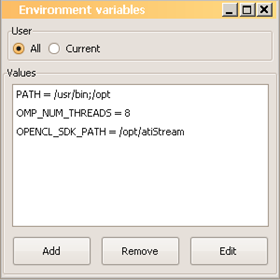
Environment Variables
image

Environment variables in the bash shell help you in several ways. Certain built-in variables change the shell in ways that make your life a little easier, and you can define other variables to suit your own purposes. Here are some examples of built-in shell variables:

  • PS1 defines the shell's command-line prompt.
  • HOME defines the home directory for a user.
  • PATH defines a list of directories to search through when looking for a command to execute.

To list the current values of all environment variables, issue the command

env

or list a specific variable with the echo command, prefixing the variable n ame with a dollar sign (the second line shows the result of the echo command):

echo $HOME
/home/hermie

You've already learned how to customize your shell prompt with the PS1 variable. The HOME variable is one you shouldn't mess with, because lots of programs count on it to create or find files in your personal home directory.


Understanding the Path Variable

As in DOS, the shell uses the PATH variable to locate a command. PATH contains a list of dir ectories separated by colons:

echo $PATH
/bin:/usr/bin:/usr/local/bin

When you enter a command, the shell looks in each of the directories specified in PATH to try to find it. If it can't find the command in any of those directories, you'll see a "Command not found" message.

If you decide to put your own programs in a bin directory under your home directory, you'll have to modify the path to include that directory, or the system will never find your programs (unless you happen to be in that directory when you enter the command). Here's how to change your PATH variable so it includes your personal bin directory:

PATH=$PATH:$HOME/bin

So if PATH was set to /bin:/usr/bin:/usr/local/bin beforehand, it would now have the value /bin:/usr/bin:/usr/local/bin:/home/hermie/bin.


Creating Your Own Shell Variables

If you are a programmer, you'll find it handy to create your own shell variables. First issue the command

code=$HOME/projects/src/spew

and then, regardless of what directory you are in, you can issue

cd $code

to pop over quickly to the directory containing the source code for that way-cool spew program you're developing. (The cd command means "change directory.")

A variable assignment like this will work just fine, but its scope (visibility) is limited to the current shell. If you launch a program or enter another shell, that child task will not know about your environment variables unless you export them first.

Unless you know for sure that an environment variable will have meaning only in the current shell, it's a good idea to always use export when creating variables to ensure they will be global in scope--for example,

export PS1="\u \$ "
export code=$HOME/projects/src/spew

And be sure to add these commands to your .profile file so you won't have to retype them each time you log in.

Remove The User List From Ubuntu 9.10 GDM Login Screen

I’m really enjoying the latest additions in GNOME 2.28, but one thing that has been bugging me is the rewrite of the GDM login screen. Historically it has been possible to customize a number of options, including features such as activating or deactivating the user list. With this latest upgrade it seems that GDM has been completely rewritten and those previously accessible customizations are now gone or well hidden. I have, however, been able to find a way to disable the user list and, again, require a username to login.

I’m curious to see further improvements to the new GDM system, but until that time I prefer to require username and password to login, not just a password.


image

Disable User List

In order to disable the user list you’ll need to open a terminal and run the following command:

sudo -u gdm gconftool-2 --set --type boolean /apps/gdm/simple-greeter/disable_user_list true

Enable User List

If you’d like to re-enable the user list you can revert the above command using:

sudo -u gdm gconftool-2 --set --type boolean /apps/gdm/simple-greeter/disable_user_list false

Open Office 3.2 Release Candidate

For those that are fans of the Free Software Office Suite, Open Office, a release candidate has been made available for version 3.2. This version improves a number of features in all areas of the tool. Some of the highlights are:

  • Faster startup times: both Calc and Writer have cold-boot start times improved by 46%!
  • Improved ODF standards support
  • Improved proprietary file support including MS Excel, MS Word, MS Powerpoint, OLE Objects, Encryption support, and much more
  • Support for Postscript based OpenType fonts
  • Improved autocorrect word completion
  • Mediawiki support moved to extension
  • A number of Calc improvements including: improved sort, better merged cell handling, complex copy/paste,
  • much more!

image

If you’d like to see the complete list, visit: http://www.openoffice.org/dev_docs/features/3.2/rc1.html

For those wanting to upgrade to the Release Candidate (Final release is scheduled for January), you can download the latest packages at the link below. It should be noted that 3.2 final release should be included in the next Ubuntu release, 10.04, due this April.

http://download.openoffice.org/all_rc.html

You’ll want to select the .deb package from your preferred language. Enjoy.

Auto Reboot On System Crash

By default, when the Windows XP operating system crashes an automatic reboot of the system occurs. While this behavior can be convenient, the downside is the error message accompanying the crash is not visible. Often times this information can be a great help in troubleshooting the source of the crash. This behavior can be modified in two ways; via the registry or using the System Properties property sheet.

  • [Start] [Run] [Regedit]
  • Registry Key: HKEY_LOCAL_MACHINE\SYSTEM\CurrentControlSet\Control\CrashControl
  • Modify/Create the Value Data Type(s) and Value Name(s) as detailed below.
  • Data Type: Dword // Value Name: AutoReboot
  • Setting for Value Data: [0 = AutoReboot Disabled / 1 = AutoReboot Enabled]
  • Exit Registry and Reboot

To avoid the inherent danger of editing the registry, the same results may be  obtained by using the procedure detailed below.

  • Open System Properties via Start
  • Control Panel
  • Performance and Maintenance
  • System [ System Properties may also be opened using the WinKey+Pause key combination ]
  • Select the Advanced tab and then click Settings in the Startup and Recovery section
  • In System Failure section, clear the checkbox next to Automatically Restart
  • Click OK and OK to exit

It should be noted that when you disable the Automatic Restart option you may be presented with the screen below.

image This is most likely to occur if the page file has been relocated to a different drive in order to improve virtual memory performance.


blogger templates | Blogger